

AWS databases are now available in the Vercel Marketplace and v0.
Starting today, developers can provision Aurora PostgreSQL, Amazon DynamoDB, and Aurora DSQL directly from the Vercel dashboard with a guided setup flow and automatic project configuration. v0 can also create and connect AWS accounts and databases to your project as it builds.
AWS databases run some of the world's largest applications. This launch brings AWS data infrastructure into the Vercel developer experience, so you can set up a production database without manual IAM setup, credential wiring, or switching between consoles. New AWS teams can get started with a free starter plan and $100 in credits.
Copy link to headingBuilt on AWS, optimized for speed
Vercel runs on AWS infrastructure. Your functions and your database are in the same data centers, which means latency stays low.
We tested 50 sequential database round trips across different providers:
Same workload, same Vercel functions. AWS RDS is the fastest by a wide margin because there's no network hop between your code and your data. Best of performance, now with the best of DX.
Copy link to headingGet started with v0 in seconds
Tell v0 to use AWS databases while you build, and it provisions the database, creates, or links your AWS account, and configures the connection. You go from prompt to working app with a production database in minutes.
To get started on v0, try this prompt to see it in action:
Build me an internal employee dashboard for tracking contractor hours with an AWS Database
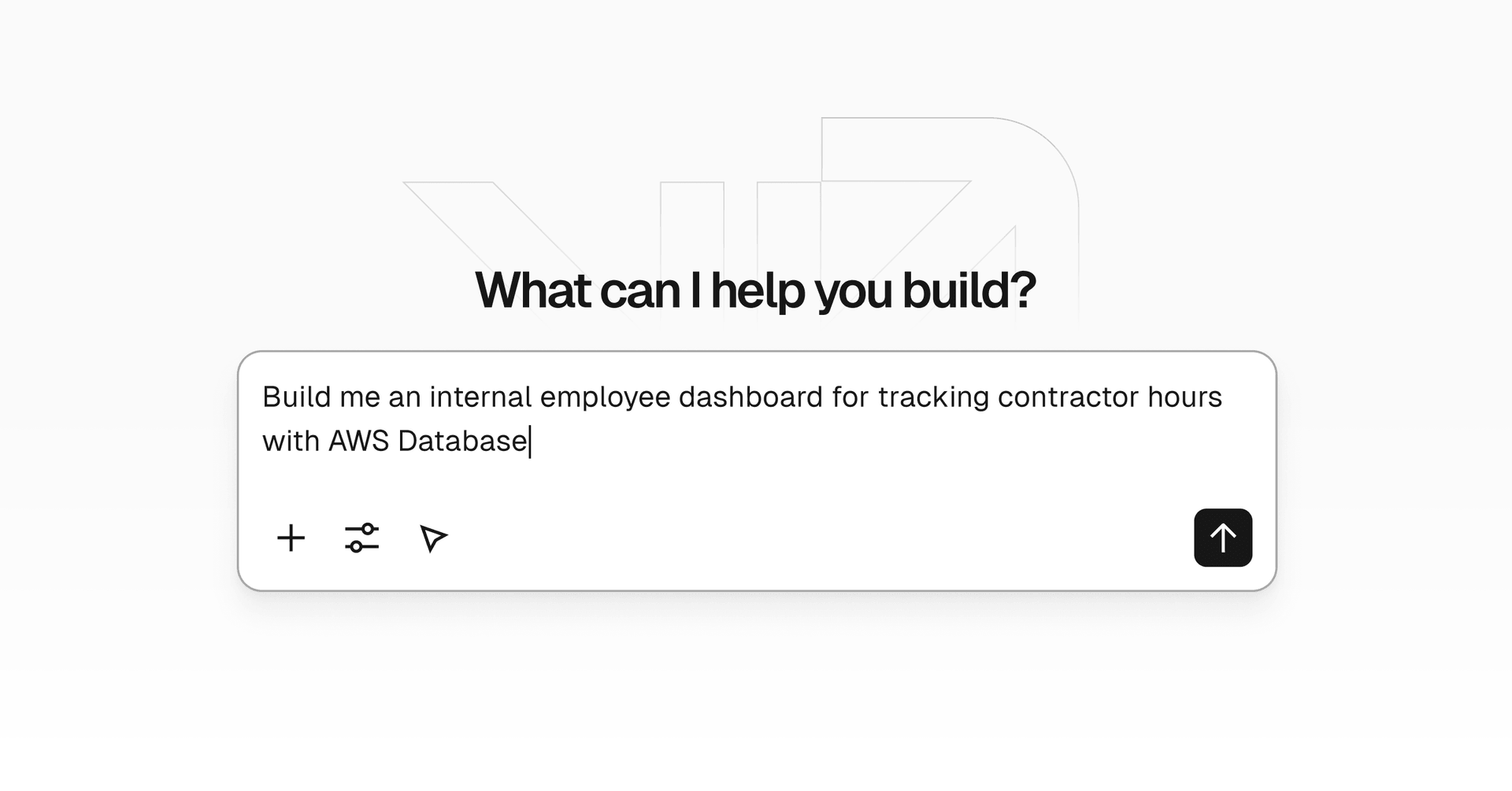
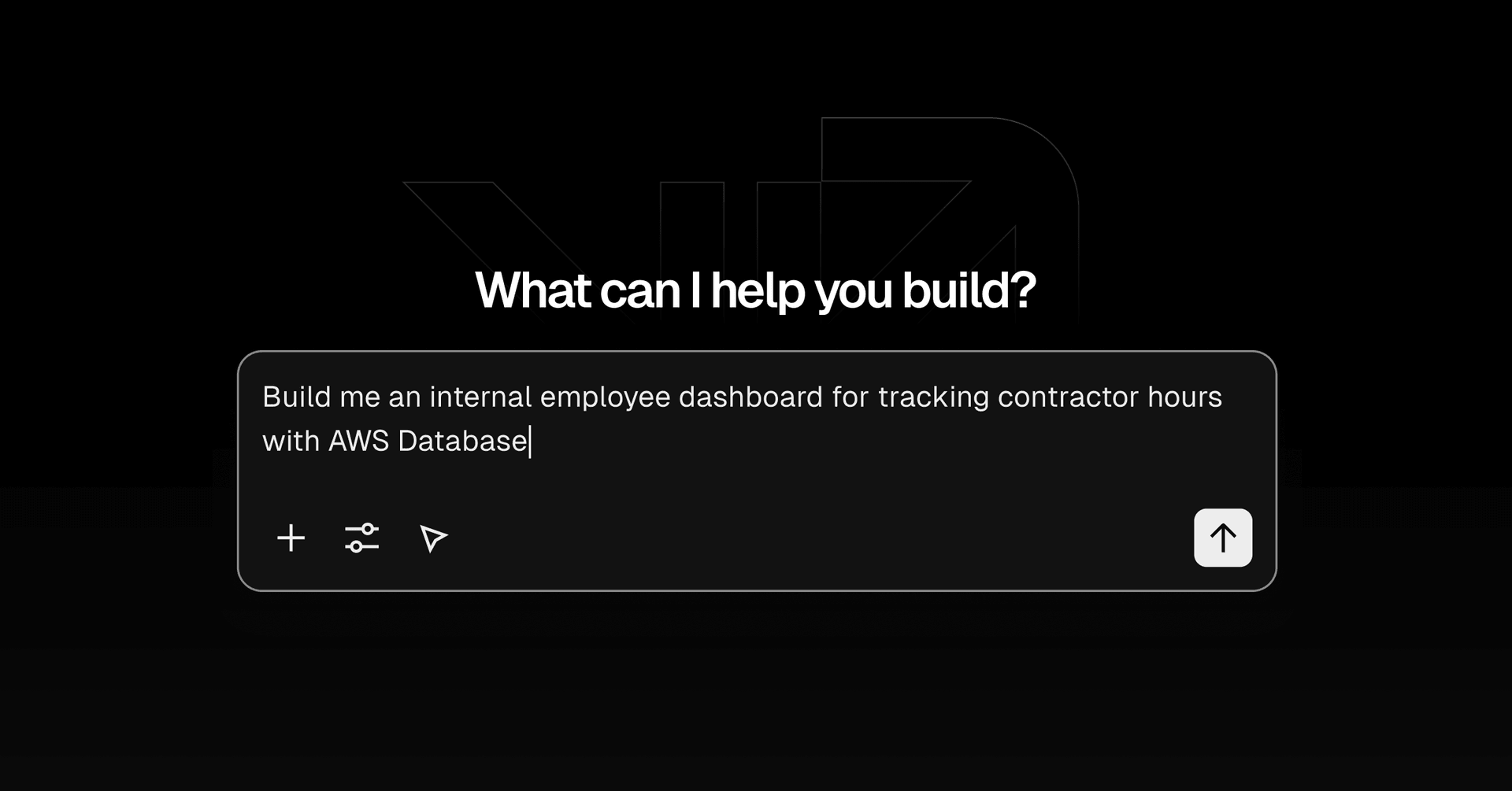
This is a milestone for both platforms. AWS infrastructure is now accessible to more builders, including designers prototyping full-stack apps, founders validating ideas, and developers who want production databases without learning IAM policies. You describe what you're building, and v0 handles the AWS setup.
Copy link to headingConnect AWS databases through the Marketplace
For existing projects or teams that want more control over provisioning, you can add AWS databases directly from the Vercel Marketplace. There are two paths, depending on whether you have an existing AWS account.
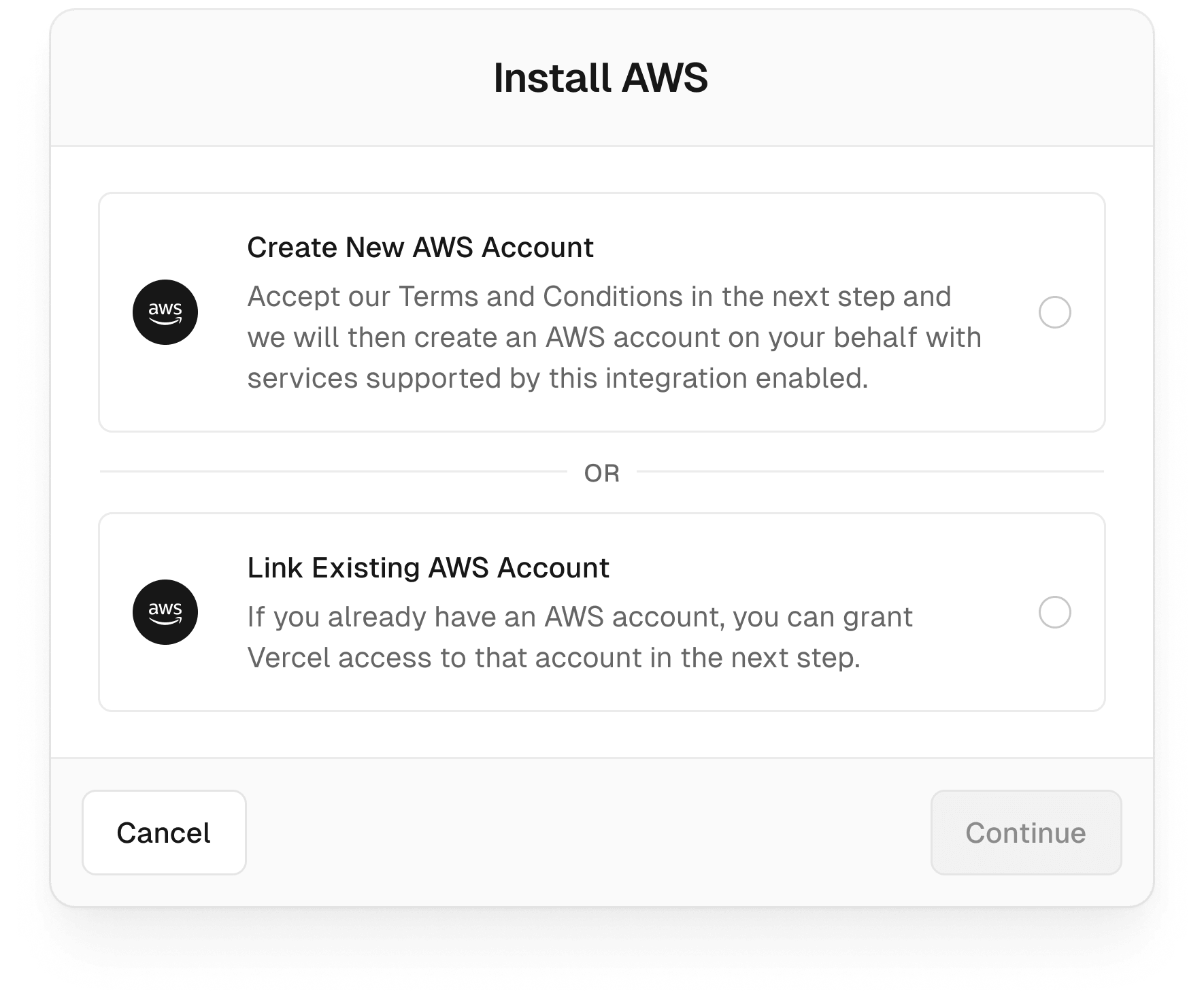
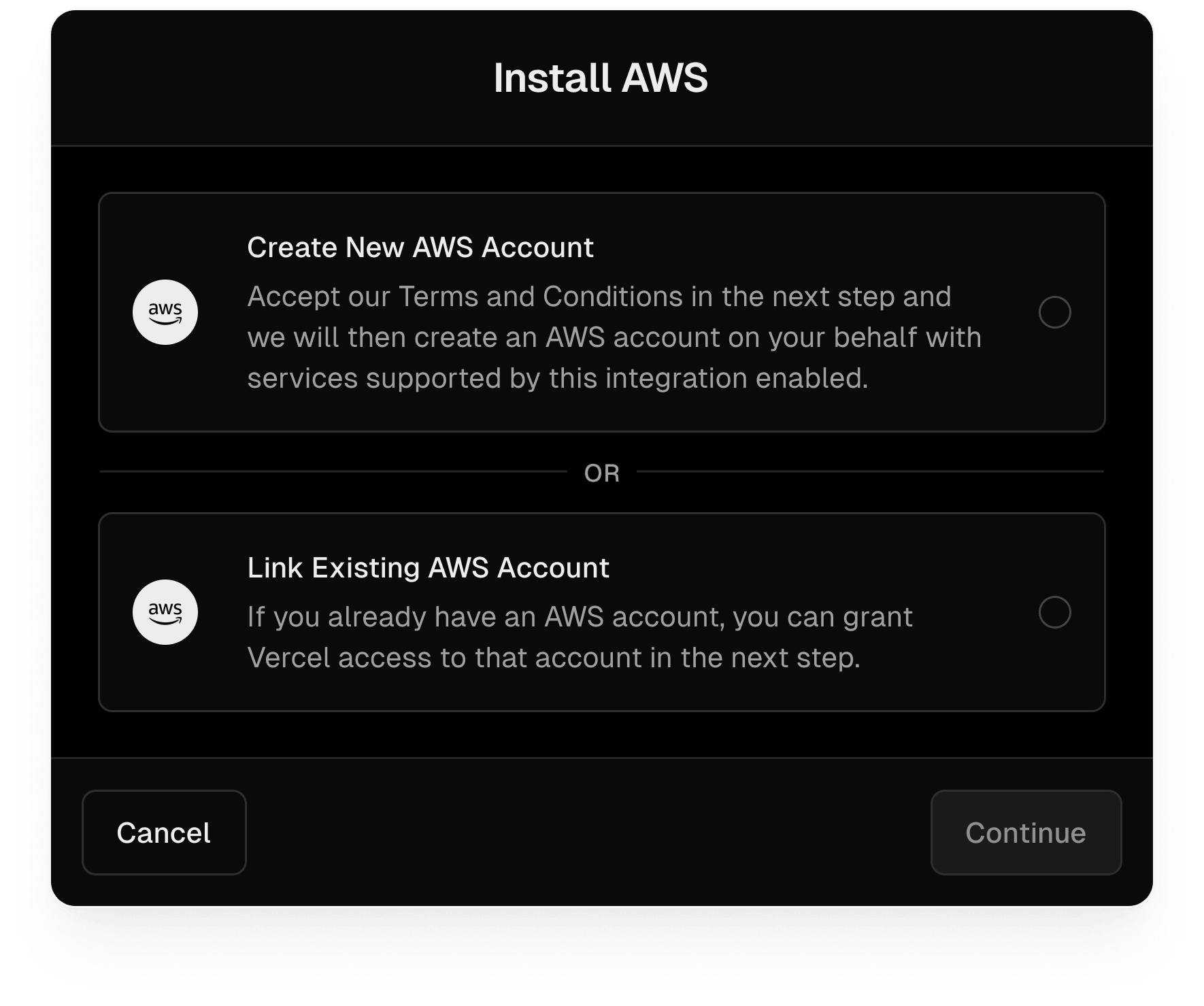
Copy link to headingNew AWS teams: create an AWS account
If you don't already have an AWS account or prefer a simplified setup, you can provision a database in one click from the Vercel dashboard. Choose Aurora PostgreSQL, Amazon DynamoDB, or Aurora DSQL, select your region and plan, and Vercel handles the rest.
This flow works well for teams that want a fully managed experience without touching the AWS console.
To get started:
Navigate to the Vercel Marketplace → AWS
Select Create new (Vercel-managed account)
Choose Aurora PostgreSQL, Aurora DSQL, or Amazon DynamoDB
Pick your AWS region and plan
Connect the resource to your project. Vercel automatically injects environment variables and configuration
Copy link to headingExisting AWS teams: link your AWS account
If your team already manages AWS infrastructure, you can connect your own account using AWS IAM temporary delegation permissions. This lets you create AWS resources on Vercel and connect them to your projects while keeping your existing AWS setup.
To install databases using your existing AWS account:
Navigate to the Vercel Marketplace → AWS
Select Link an existing AWS account
Grant temporary permissions to Vercel and click Allow Access
You'll be redirected back to Vercel
Choose Aurora PostgreSQL, Aurora DSQL, or Amazon DynamoDB
Pick your AWS region and plan, then create a database
Connect the resource to your project. Vercel automatically injects environment variables and configuration
Copy link to headingWhat you can do with AWS integrations today
Whether you use v0 or the Marketplace, the integration allows you to:
Provision Aurora PostgreSQL, Aurora DSQL, or Amazon DynamoDB in any supported AWS region
Inject connection credentials into your Vercel project as environment variables
Manage resource lifecycle from Vercel, including teardown
Open the resource in the AWS Console when deeper configuration is needed
Use AWS-native scaling and durability features without manual setup
Your database shows up in the Storage tab like any other resource. This gives you a unified view of your application's data layer across providers.
Once connected, querying your database is straightforward:
import { pool } from '@/lib/postgres'
export function GET() { return Response.json(pool.query("select * from todos"));}
Query a database
The database client uses Vercel's OIDC integration to assume your AWS role and generate IAM auth tokens on each connection. There are no stored database passwords:
import { Signer } from "@aws-sdk/rds-signer";import { awsCredentialsProvider } from "@vercel/functions/oidc";import { attachDatabasePool } from "@vercel/functions";import { Pool } from "pg";const signer = new Signer({ hostname: process.env.PGHOST, port: Number(process.env.PGPORT), username: process.env.PGUSER, region: process.env.AWS_REGION, credentials: awsCredentialsProvider({ roleArn: process.env.AWS_ROLE_ARN, clientConfig: { region: process.env.AWS_REGION }, }),});export const pool = new Pool({ host: process.env.PGHOST, user: process.env.PGUSER, database: process.env.PGDATABASE || "postgres", password: () => signer.getAuthToken(), port: Number(process.env.PGPORT), ssl: { rejectUnauthorized: false },});attachDatabasePool(pool);
Setup a database client
From here, you're writing application code. Your credentials are injected, your auth tokens are handled, and your connection pool is configured for serverless. The setup that usually comes before building is already behind you.
Copy link to headingThe foundation for self-driving infrastructure
This launch is a meaningful step in our broader vision for self-driving infrastructure. As the platform continues evolving, developers will spend less time configuring systems and more time building products.
By combining AWS reliability and scale with the Vercel developer experience, teams can move from idea to production faster, with fewer operational decisions to manage.
To get started, install AWS databases from the Vercel Marketplace, ask v0 to build an app using AWS databases, or deploy the Movie Fetching Database template to see the integration in action.